Installing the web application on your mobile phone / tablet
The new web application is designed to be usable on a computer desktop or every other portable device like mobile phones and tablets.
We are using the new standards of Progressive Web Applications to offer you an app-like user experience on a web application that you won't have to install from a store.
No intrusive conditions, no interaction with your mobile core services under the hood. It is a powerful website that looks and feels like an application, but it still is a website, no more.
Ok, how to install it then?
You go on the URL: next.dashboard.zaack.io and let your browser do the magic. Almost.
The feature is not handled the same way on every OS and browsers.
Let's quickly see that both for IOS and Android users.
IOS
One drawback: You must use Safari to install the App to your home screen. There is no other way around (thanks Apple 👋).
One good point: it is super easy!
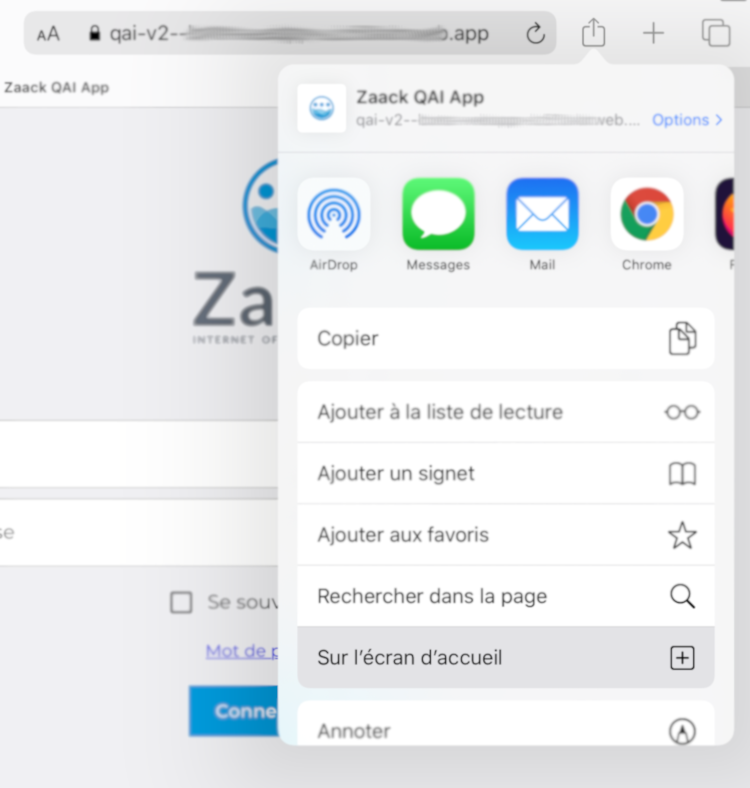
Open Safari and insert next.dashboard.zaack.io in the search bar
Click on Safari Launch button and On Home Screen.
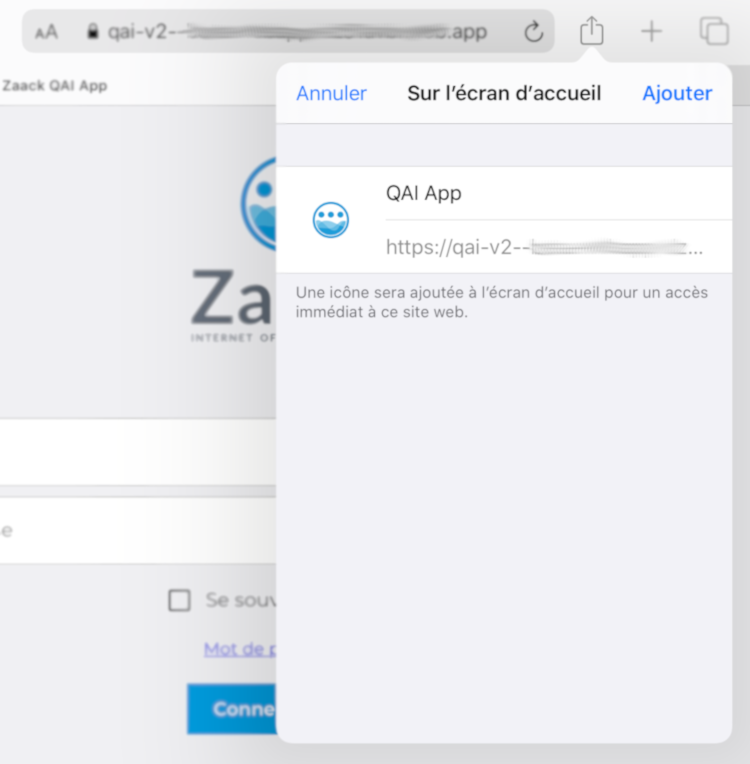
Save the application default name or rename it
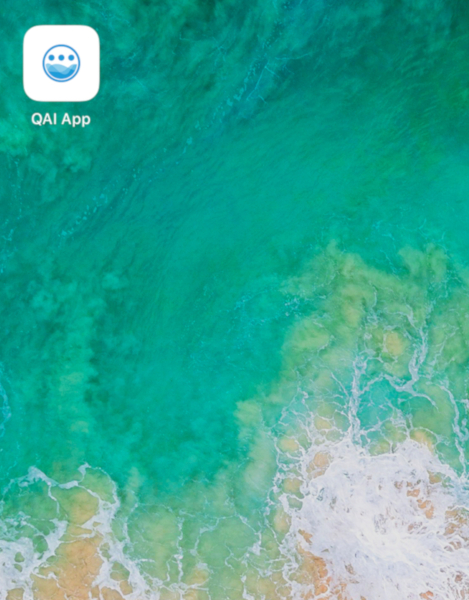
Your app is now on your home screen, we're done!
Android
Android gives you more opportunities to easily install the app on your home screen.
Automatic detection
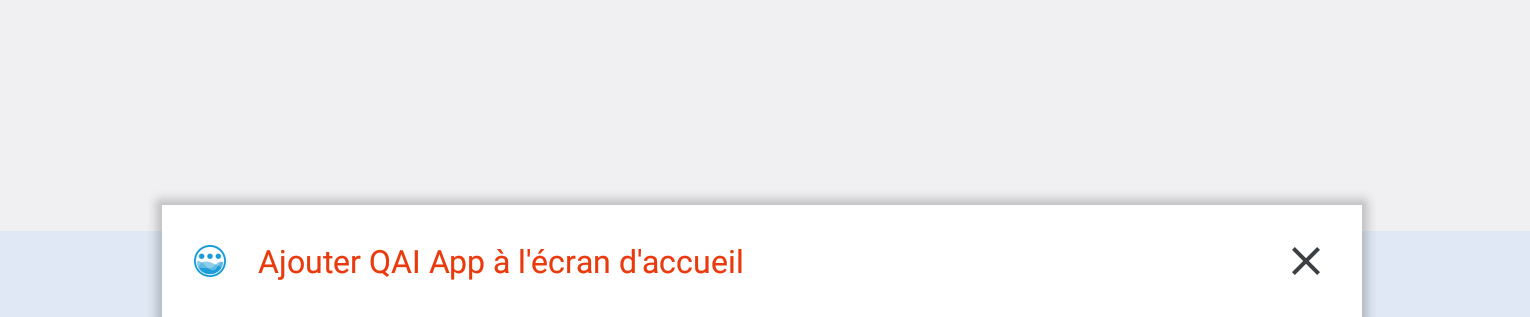
On Chrome, Brave and Edge, a little snack bar will automatically be opened when reaching the app URL to let you know you can install it.
Add QAI App to the Home screen
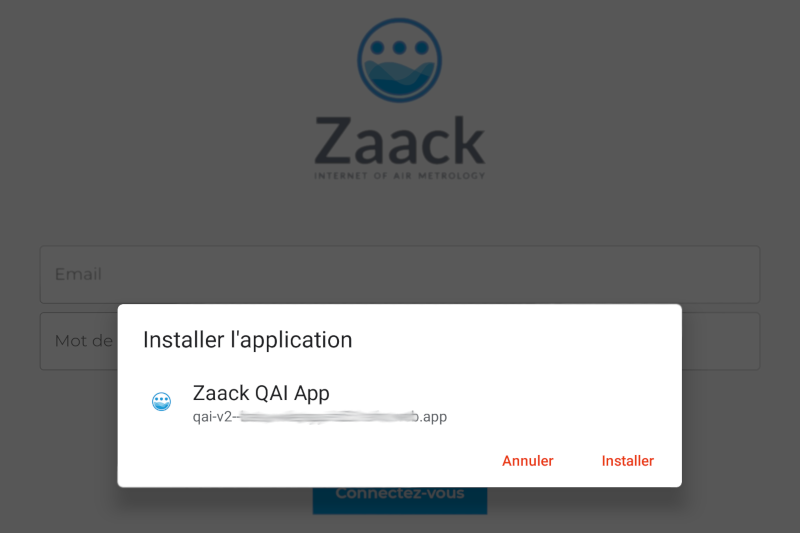
Then you'll have to confirm.
Manual installation
For other browsers like Firefox, Opera or Samsung Internet, you'll have to dig in the options of the page.
Each one has a different layout, but the steps are similar.
In the end you'll have your app on home screen.

Firefox
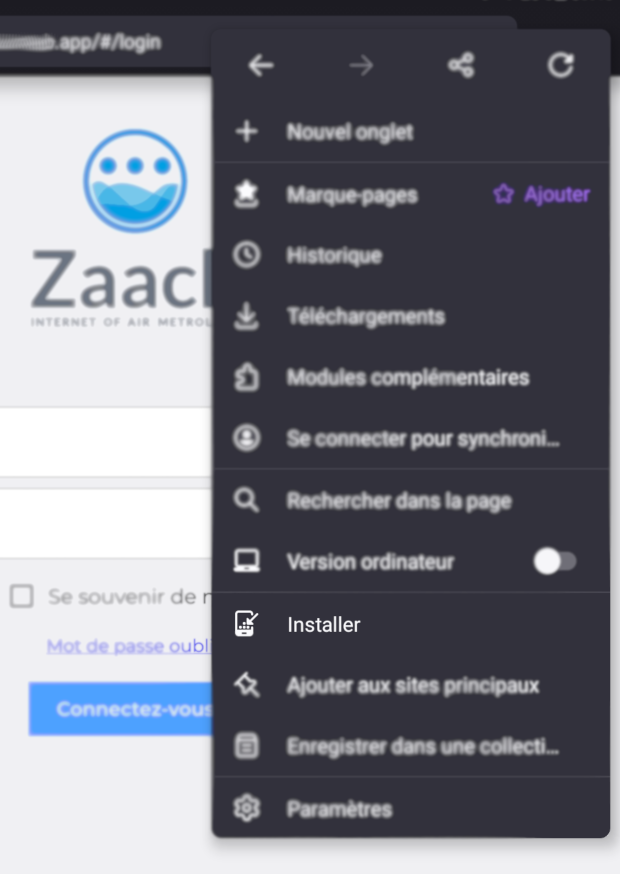
Open the options and click on Install.
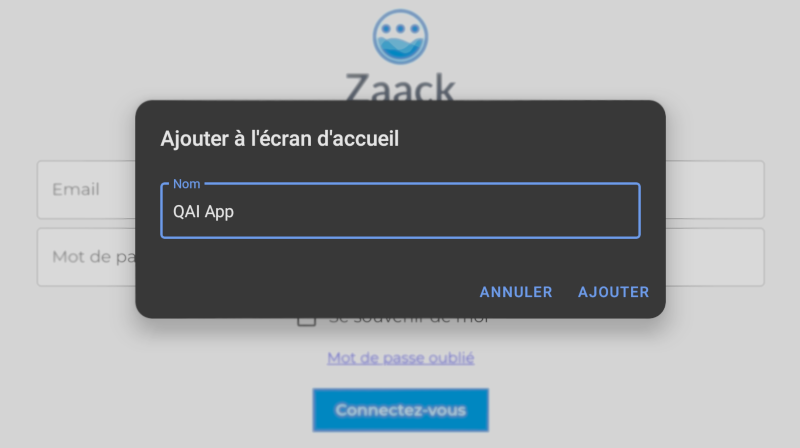
Then you'll have to check the name of your app and accept it.
Done.

Opera
On Opera, click on options and go all the way down to Home screen
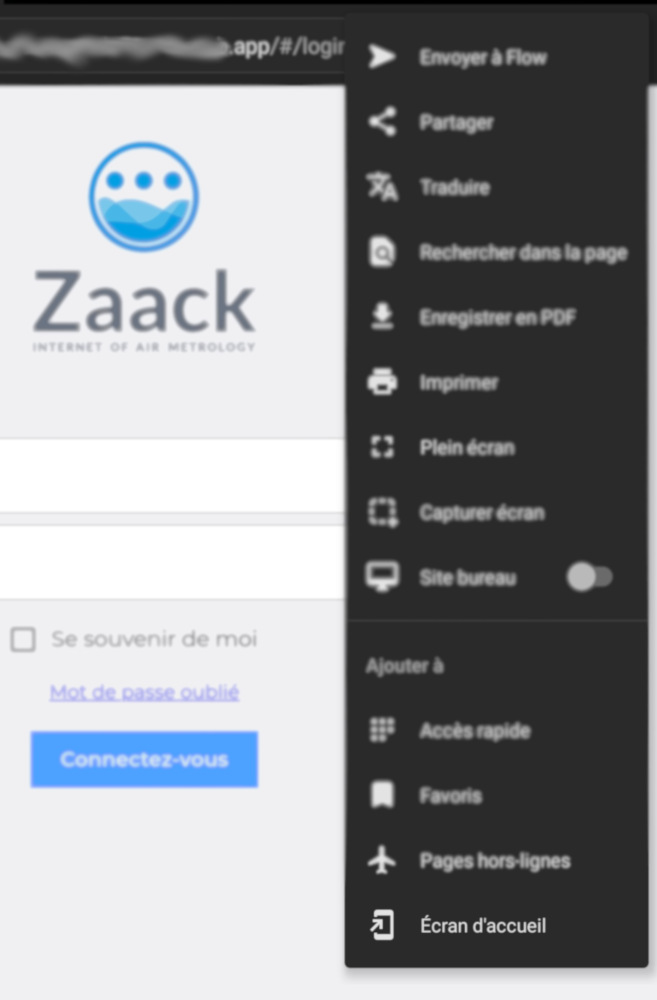
Samsung Internet (and other uncommon browsers)
Not the most popular browser but it is a good example of some alternatives you could face on specific browsers.
Open options and click on top-right button Add page to
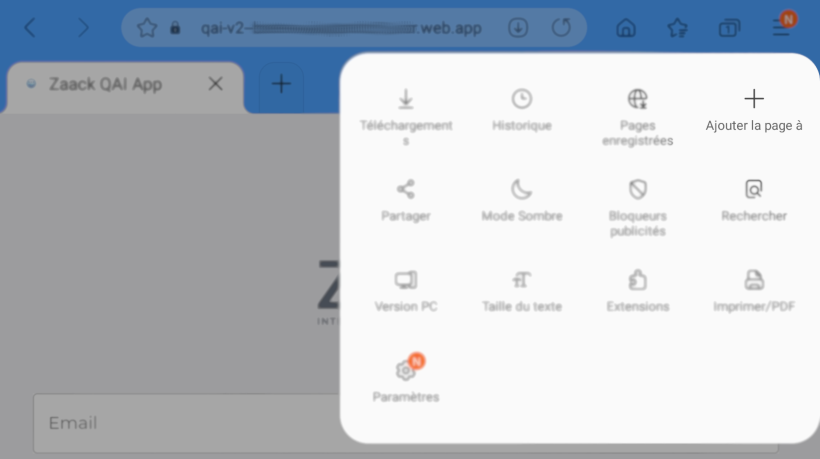
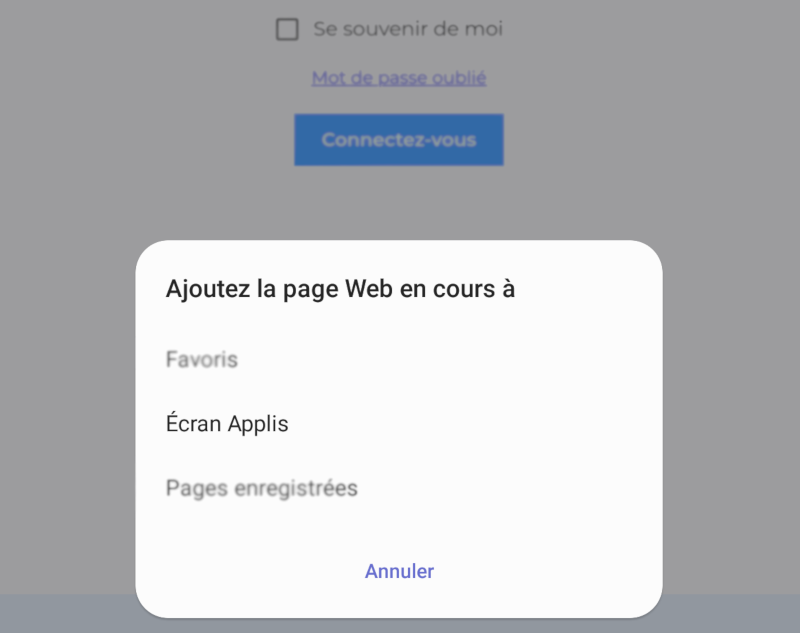
Then click on Apps screen